
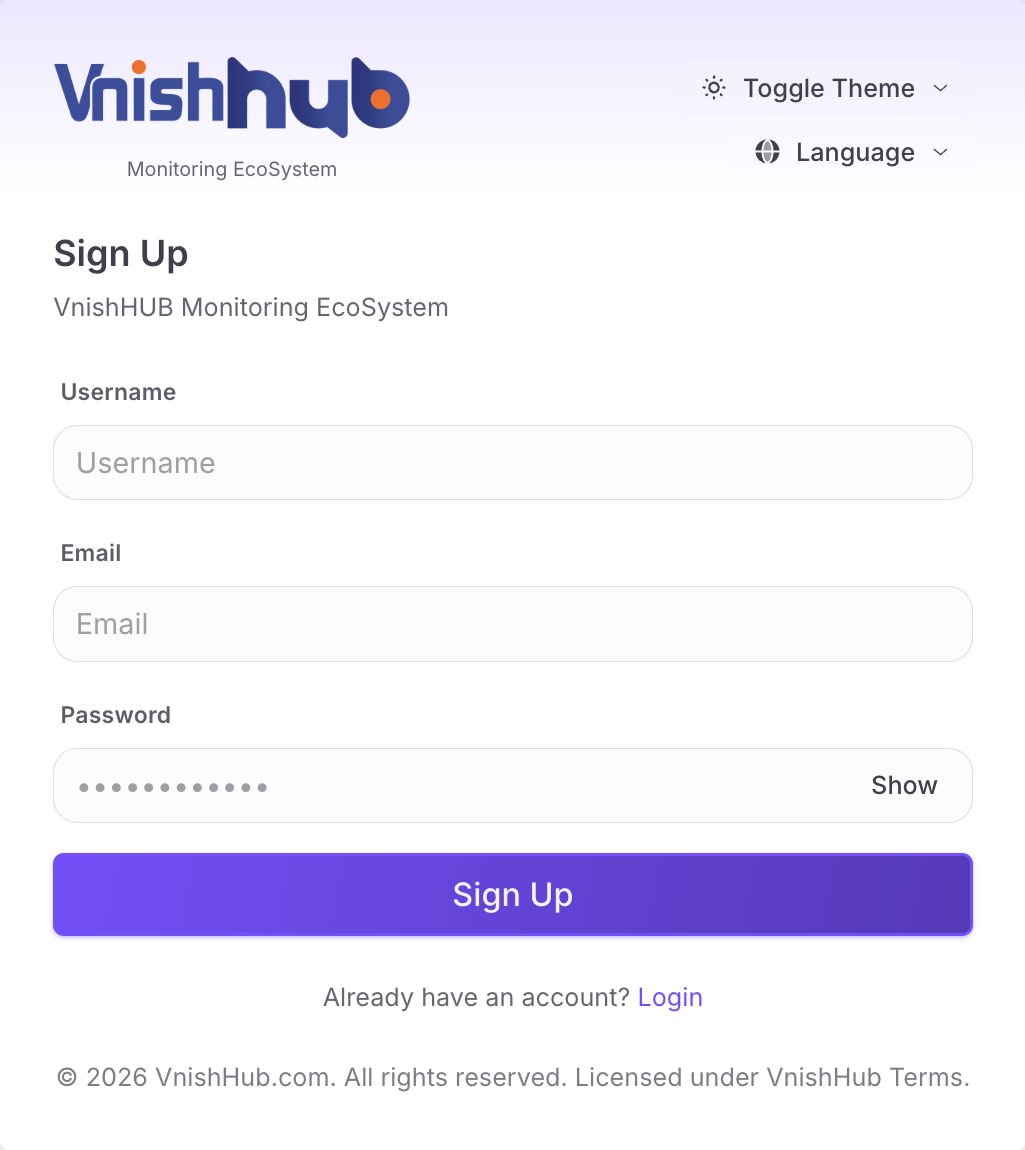
1 - Register in VnishHUB Monitoring EcoSystem
1 - Register in VnishHUB Monitoring EcoSystem
There are two ways to connect to VnishHUB Monitoring EcoSystem . By VnishHUB Firmware version , you don’t need any PC or device on your farm . Miners connect to VnishHUB Monitoring EcoSystem directly . To connect to VnishHUB Monitoring EcoSystem by HUB firmware version :
3.4 - Paste your API Key than copied from your VnishHUB Account Panel and choose HUB as Description
Download, install and run vnish hub local part (Windows, macOS, android, Linux X64 / ARM)
By VnishHUB Firmware version , you don’t need any PC or device on your farm . Miners connect to VnishHUB Monitoring EcoSystem directly . To connect to VnishHUB Monitoring EcoSystem by HUB firmware version :
1 - Register in VnishHUB Monitoring EcoSystem
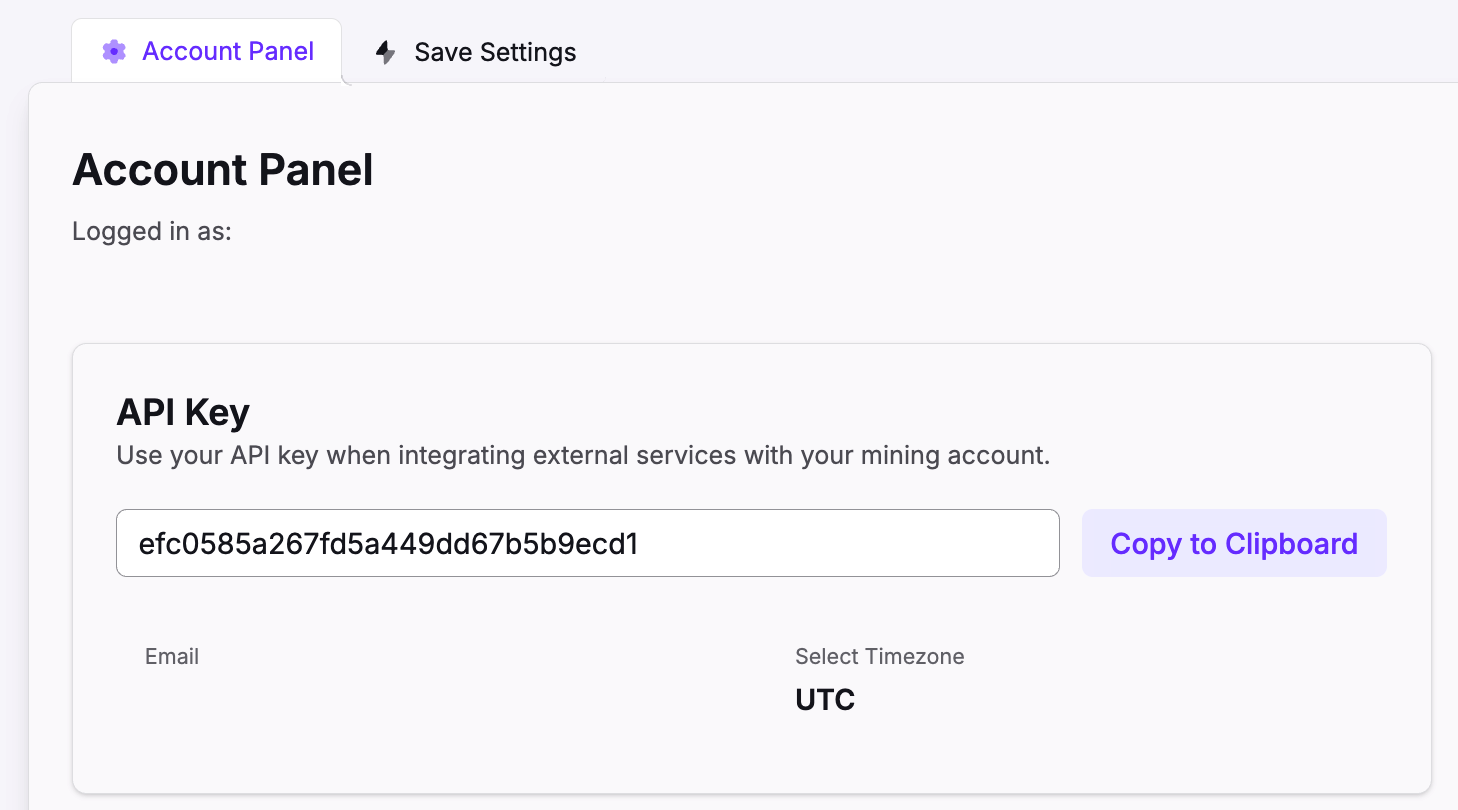
2 - Open account panel and copy API KEY
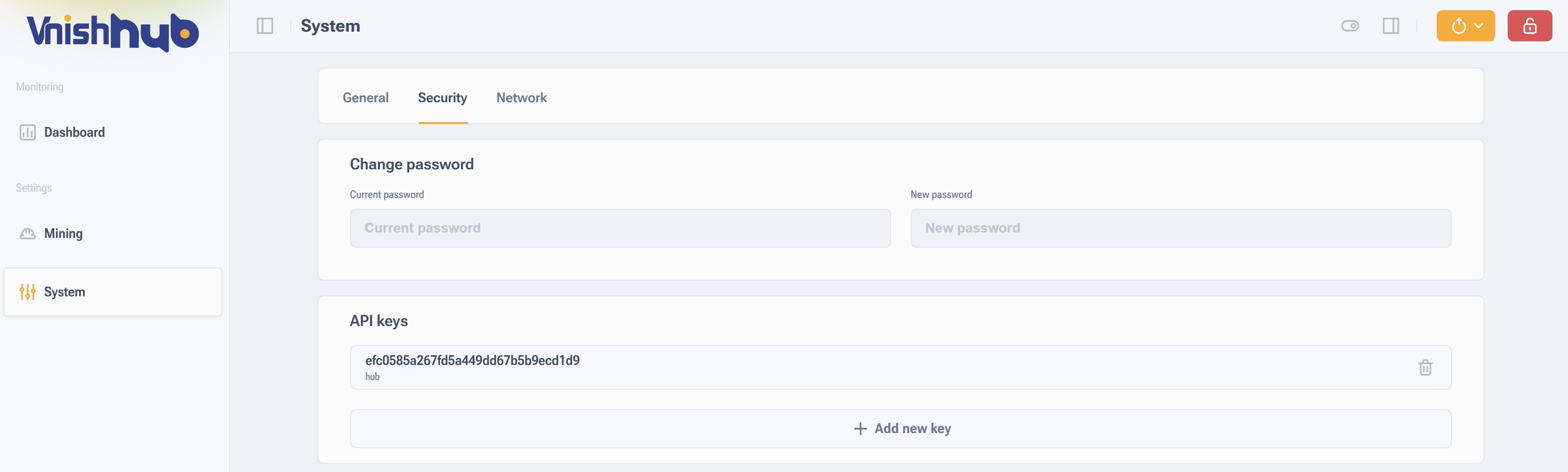
3 - Open your miner’s IP 3.1 - Click on “ System “ from left menu 3.2 - Enter “ Security “ tab 3.3 - Add API Key 3.4 - Paste your API Key than copied from your VnishHUB Account Panel and choose HUB as Description 3.5 - Save settings , and Reboot the miner .
Download, install and run vnish hub local part (Windows, macOS, android, Linux X64 / ARM)
1 - Follow step 1 & 2 , Login and enter to Account Panel and Copy API Key from Your Account Panel to your Clipboard
Download, install and run vnish hub local part (Windows, macOS, android, Linux X64 / ARM)
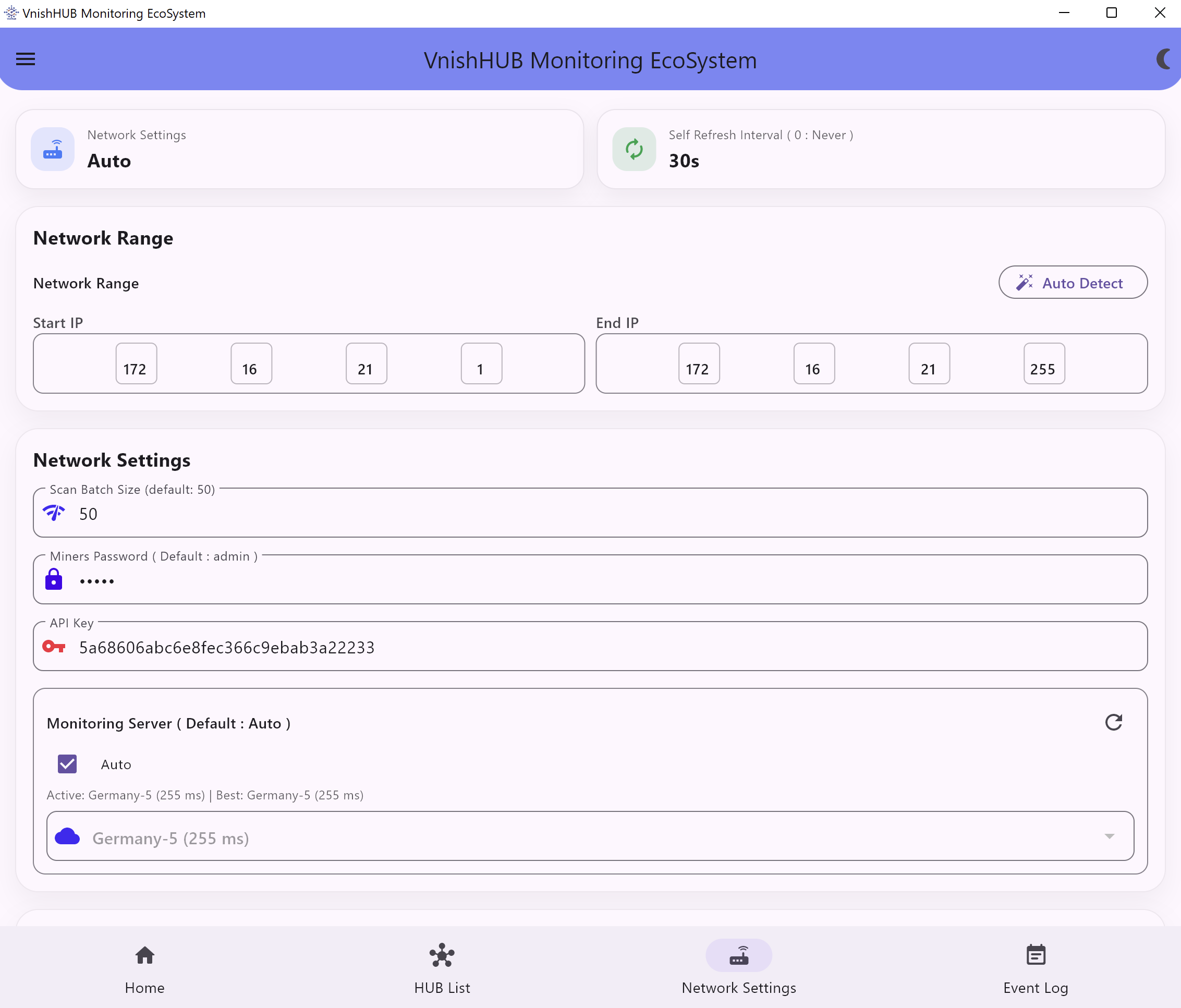
Click on “ Network Settings ” button and put miners IP range ( first and last address ), for example : 192.168.1.1 – 192.168.1.255 If your miners password is not standard ( admin ) you need to specify it in the miner password menu. Paste the API key from the Account Panel page on API Key filed. Save Settings
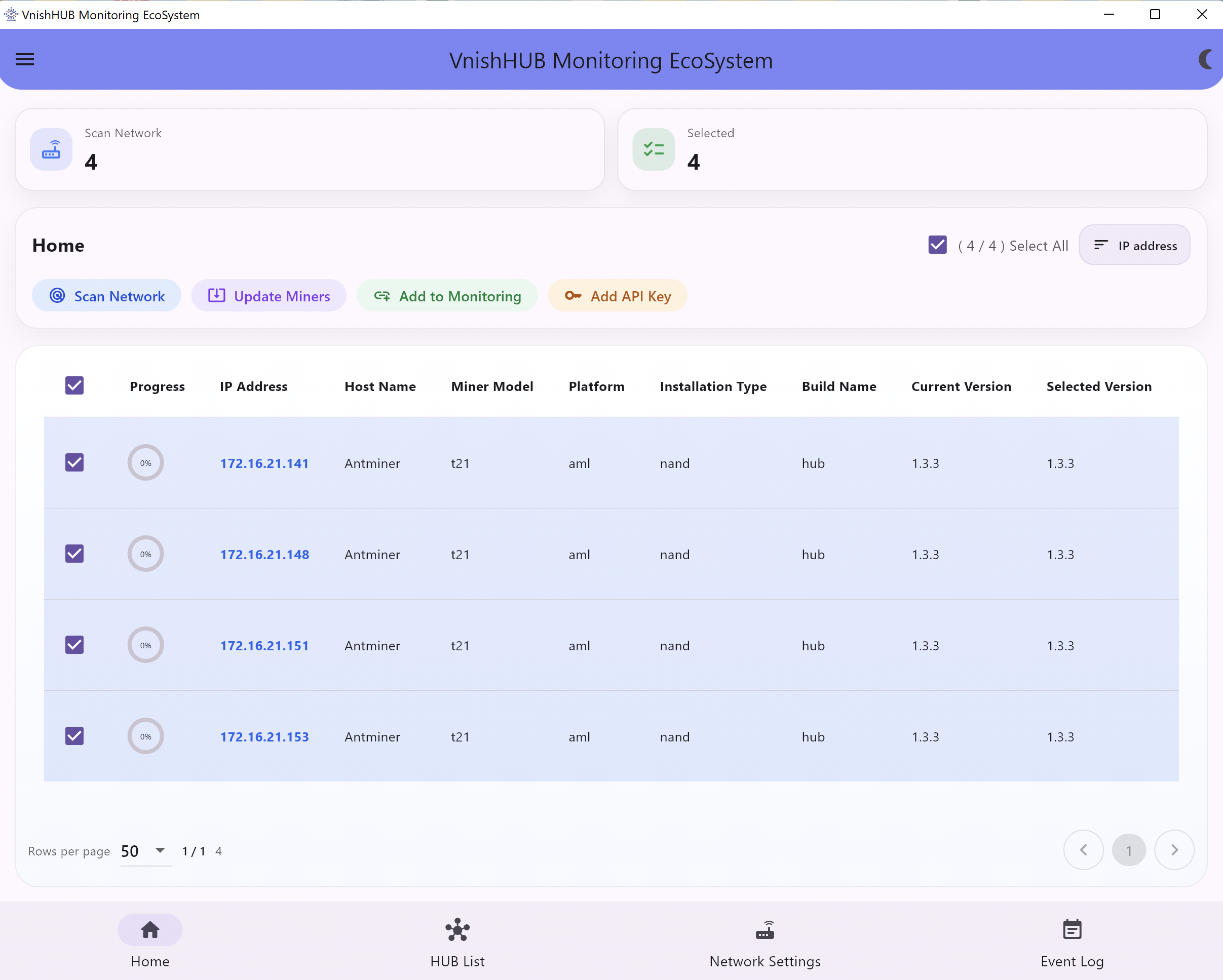
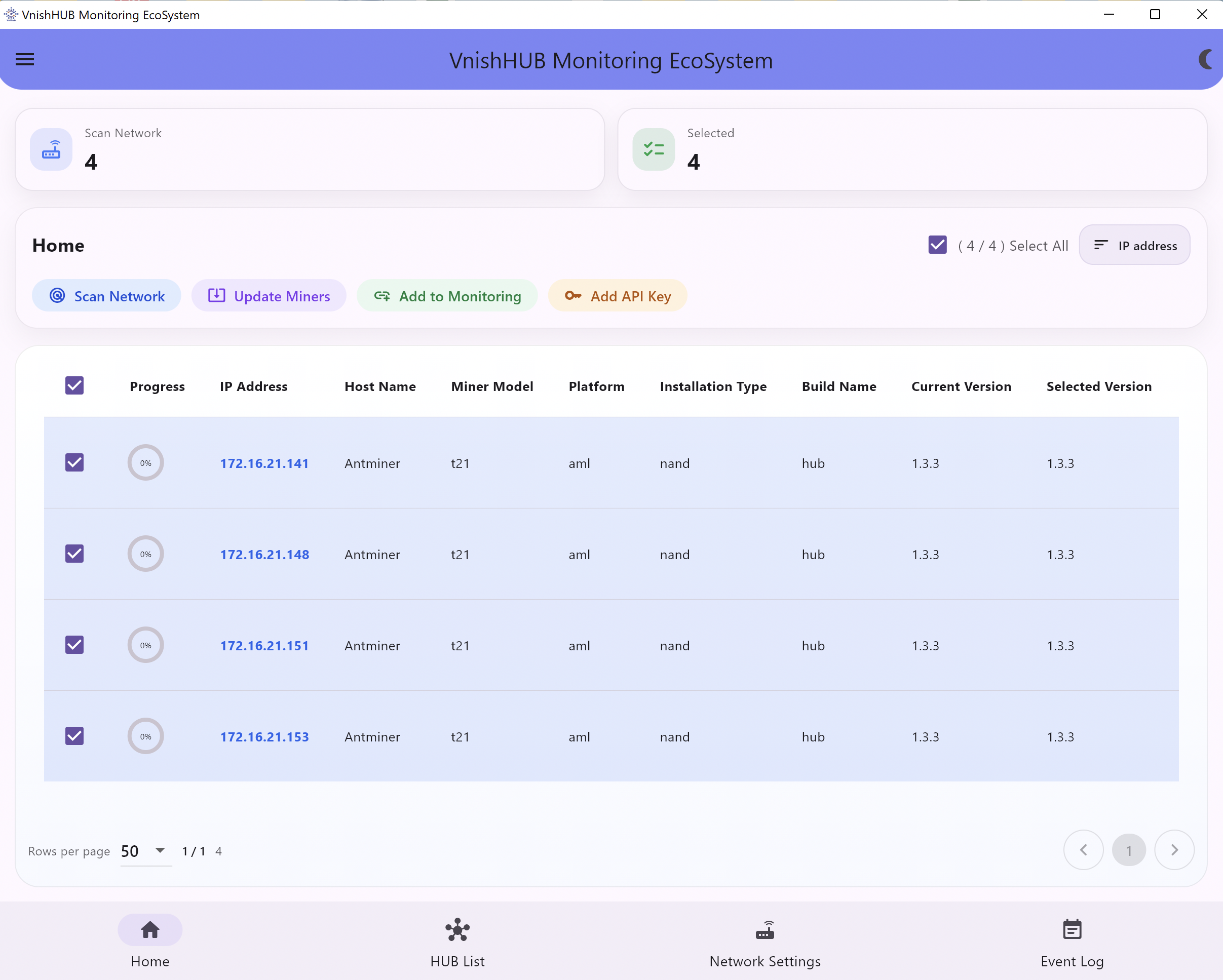
Now Enter “ home Tab click “ Scan network ” and choose miners you want to add to VnishHUB Monitoring EcoSystem You can check added miners to VnishHUB Monitoring EcoSystem on “ HUB List “ tab
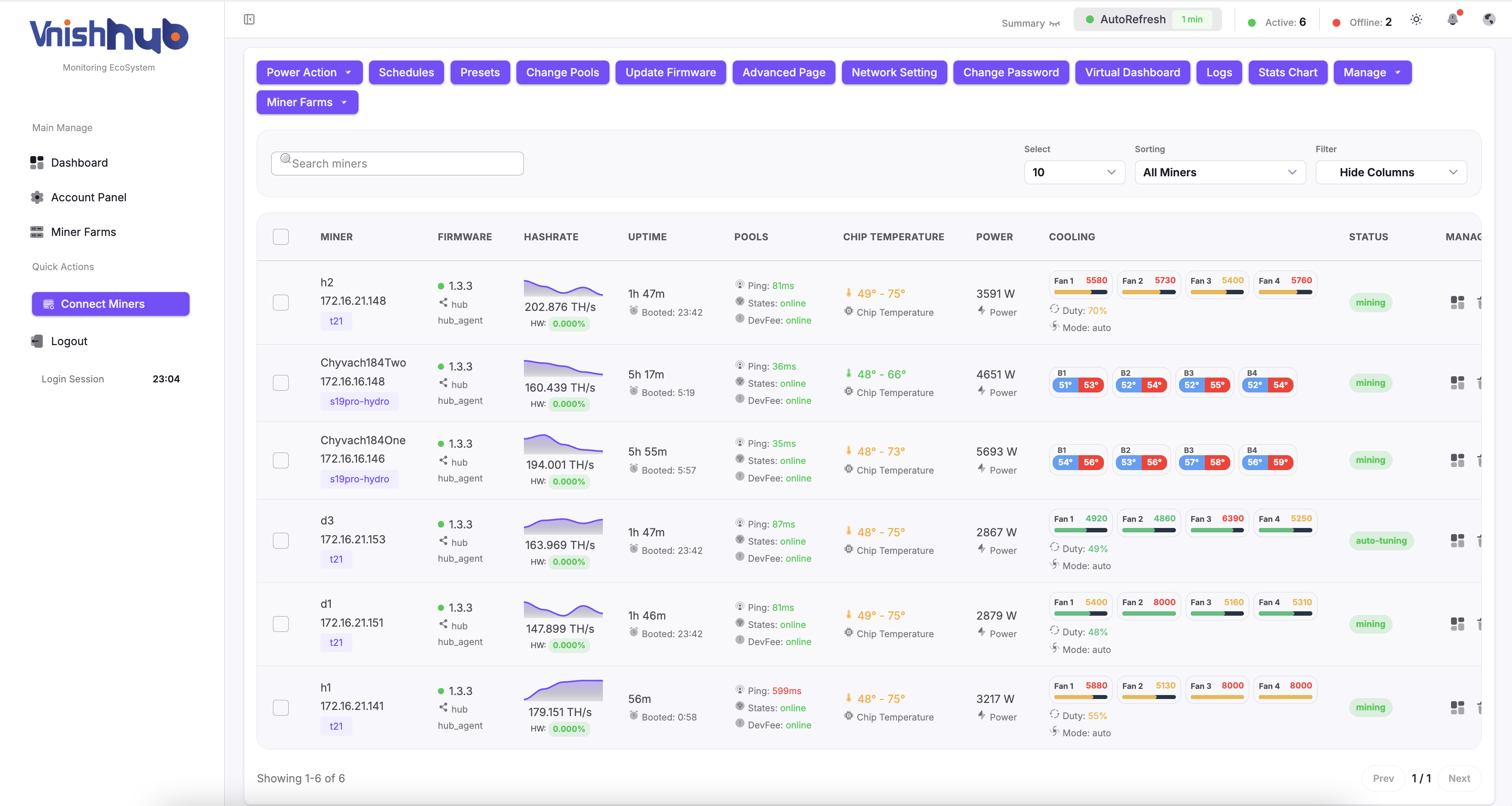
Open VnishHUB Monitoring EcoSystem account and you will find miners that were added through the local part. Now you can monitor and control the miners using the huge functionality of our monitoring
To add API Key to miners in mass
We have solution for who has huge miners and wants to use VnishHUB Firmware version ( *without VnishHUB Utility ) , but its hard for them to add API Key to miners
To add API Key to miners in mass
First you need to copy API Key from your Account Panel and paste it to VnishHUB Utility at “ Network Settings “ page as Step 4
Back to Home page and click on Scan Network
Select Miners
Click on “ Add API Key “ button
By Clicking on “ Add API Key “ button , saved API Key on your Network Settings page , will be added to selected miners
By Clicking on “ Add API Key “ button , saved API Key on your Network Settings page , will be added to selected miners